Smart and saved setups
In Smart mode, Smart picks a model for each message within two controls: Cost (Free, A little, Moderate, Generous, No limit) and Speed to Intelligence (Fastest, Fast, Balanced, Strong, Strongest). New accounts start on Free and Balanced. Both are in the model menu and in Settings › Models › Smart and Manual.
Each Cost notch reaches models the one below it doesn't: free models, then quick low-cost ones at up to 0.25¢ a typical message, the large makers' everyday models at up to 2¢, their stronger ones at up to 5¢, and every model. Toward Fastest, Smart picks quicker models, thinks less and keeps answers shorter. Toward Strongest, it picks stronger models, thinks more and writes fuller answers.
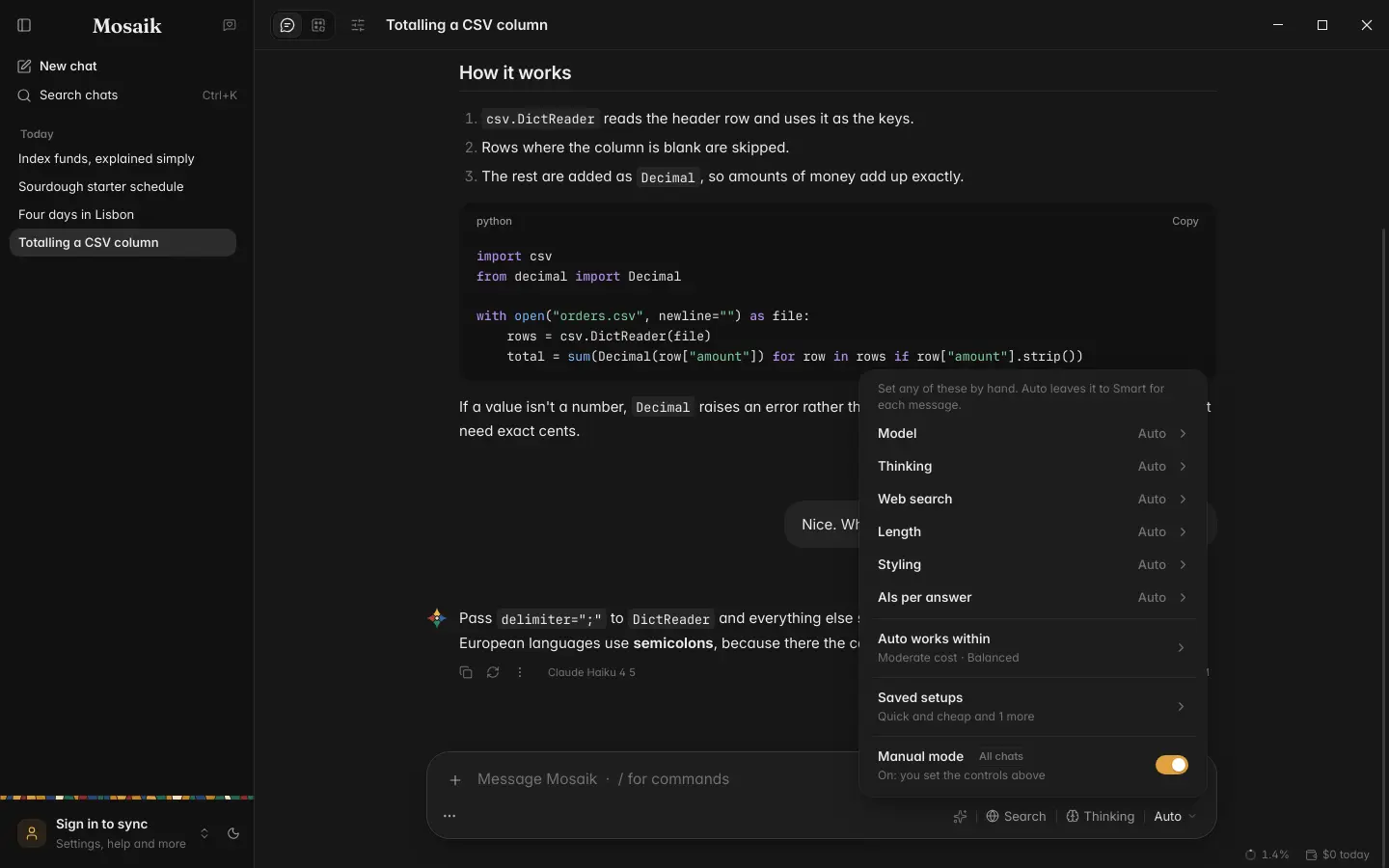
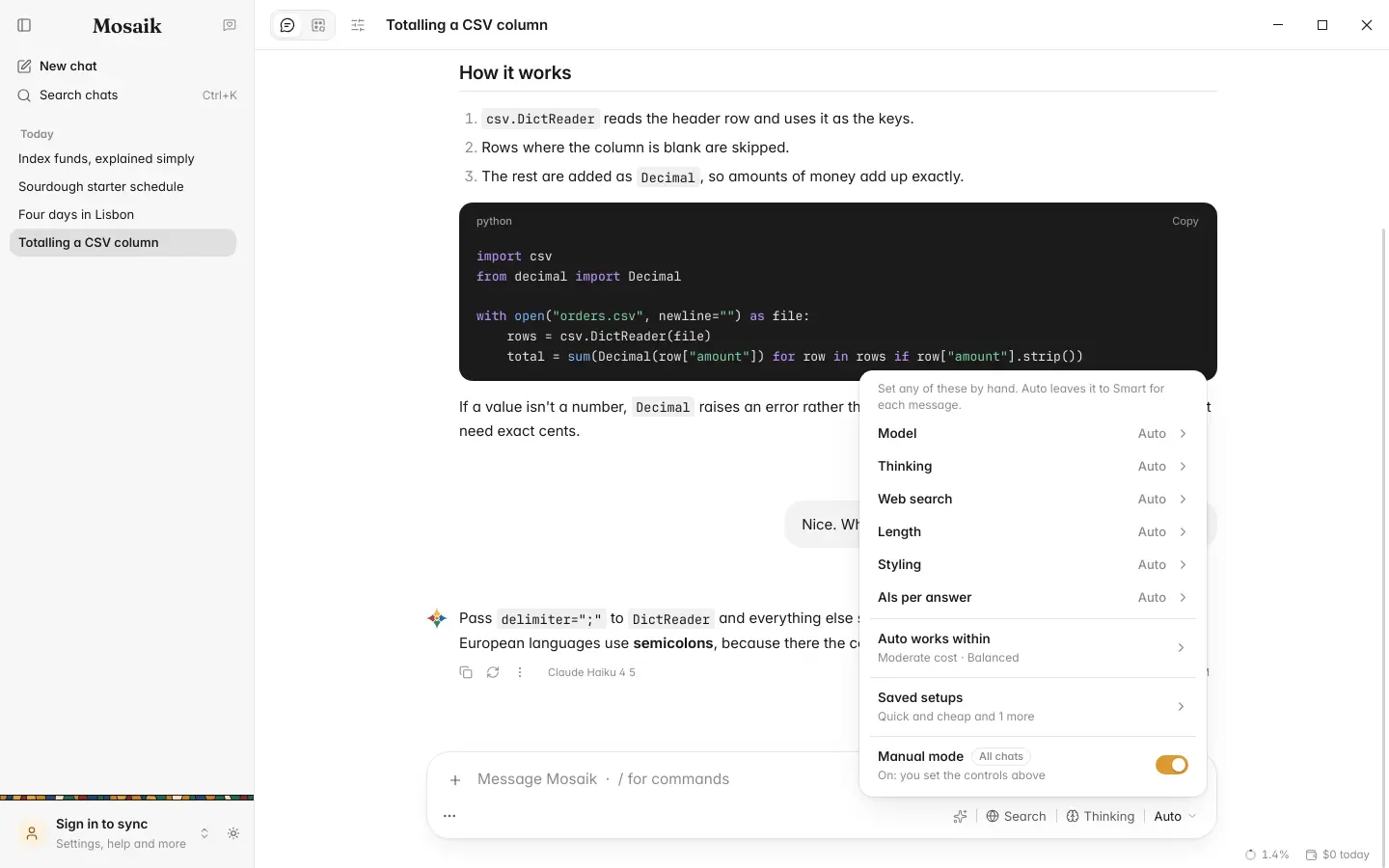
In Manual mode the model menu lists what Smart decides for each message: the Model, Thinking, Web search, Length, Styling and AIs per answer. Each starts on Auto, where Smart decides it for each message within the two controls, which sit under Auto works within. Set one by hand and it holds for every message. Thinking and web search are in the message box too, and Settings › Models › Smart and Manual has the same list.
Mosaik fetches OpenRouter's model list once a day, and Refresh models fetches it at once. A model new to the list answers a short check before Smart picks it. Until it passes, Smart leaves it out, and you can still choose it yourself.
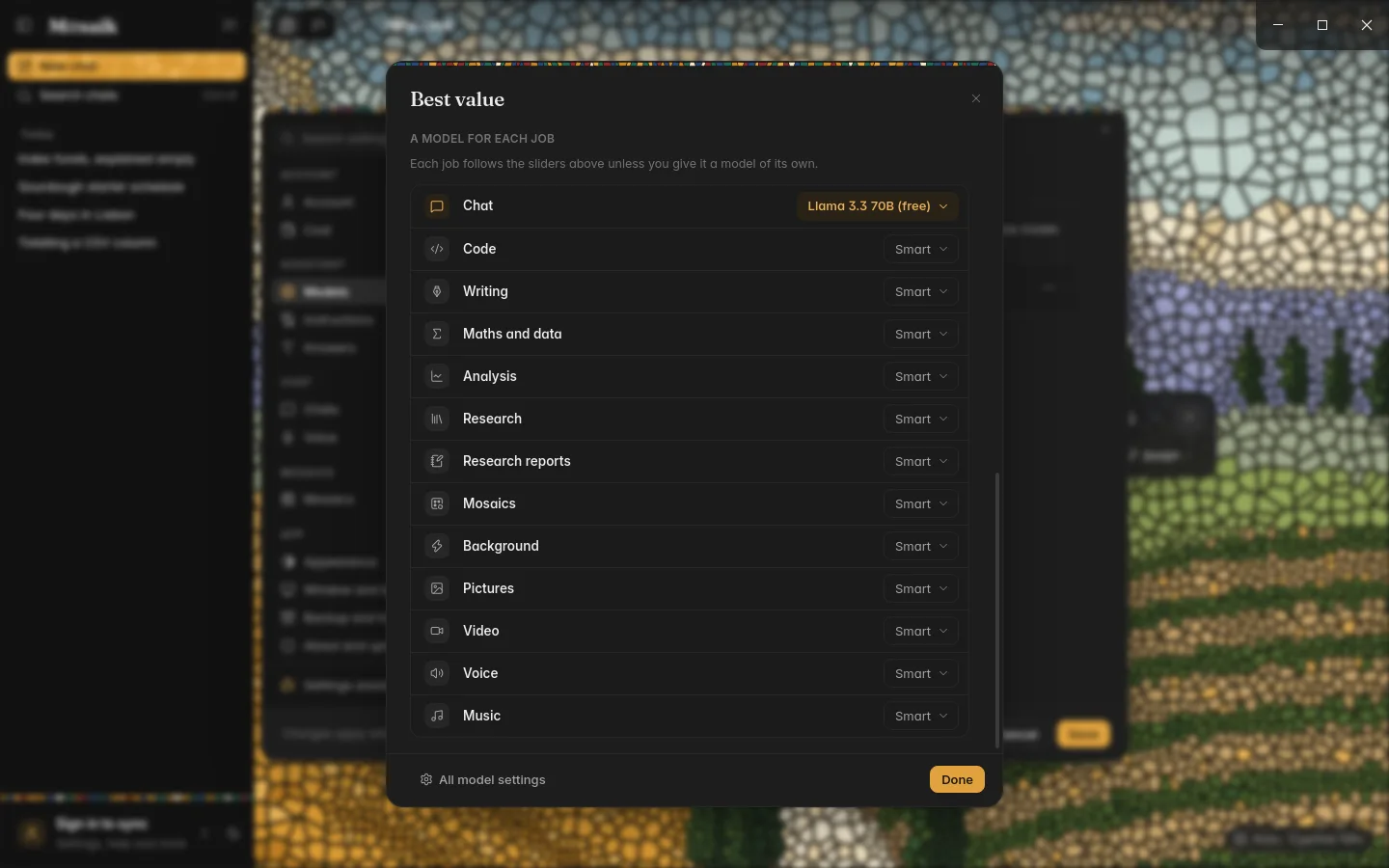
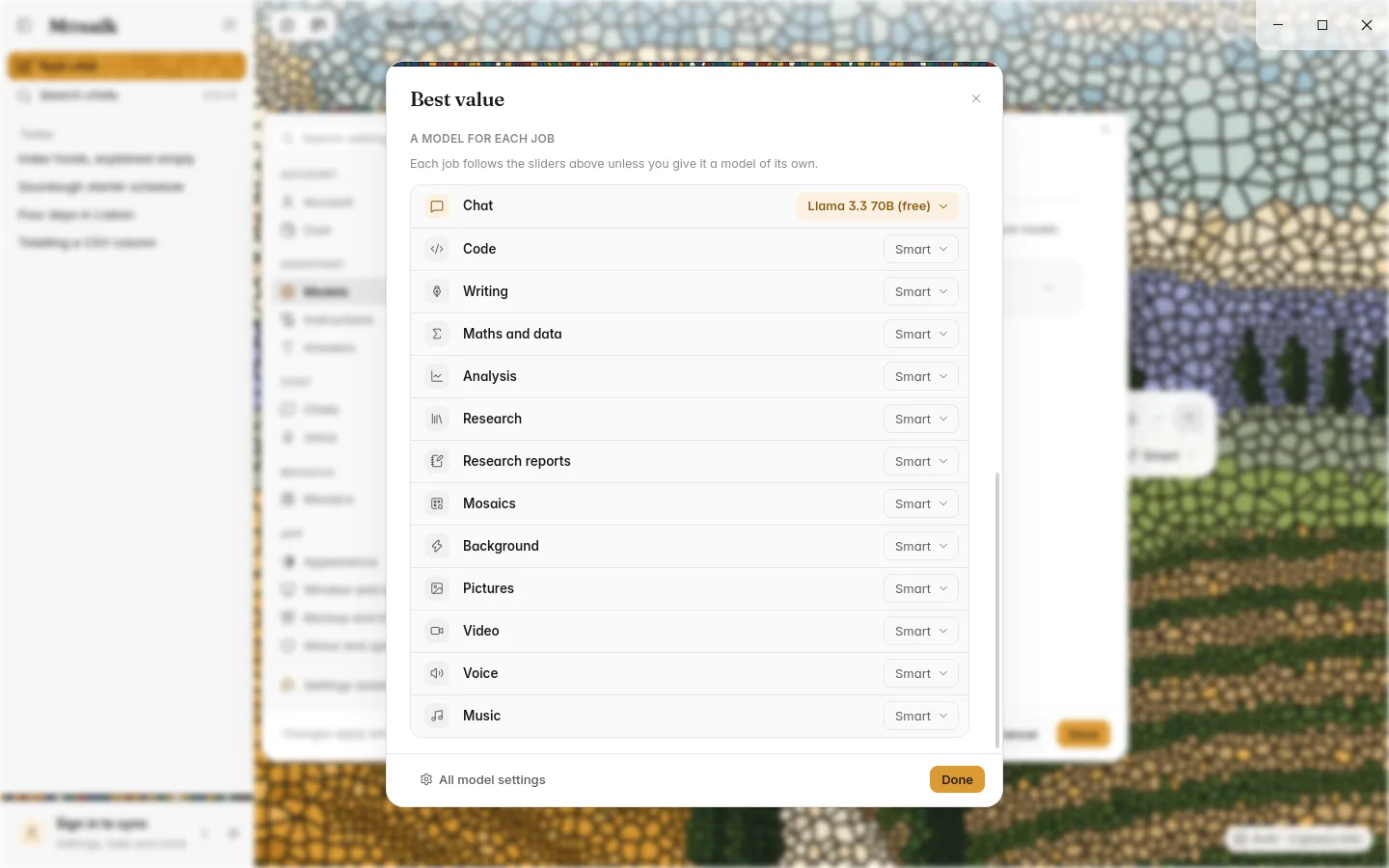
A saved setup is one you switch to from the model menu: Smart with a Cost and Speed to Intelligence of its own, or one model always. Make one in Settings › Models › Saved setups. Its window has a model for each job: chat, code, writing, maths, research, pictures, video, voice and the rest. Each job follows the setup's own controls until you give it a model of its own. Every change is saved at once.
A saved setup can also keep to its own privacy: skip providers that train on or store your chats, zero data retention only, or both.
Changing the model for one chat
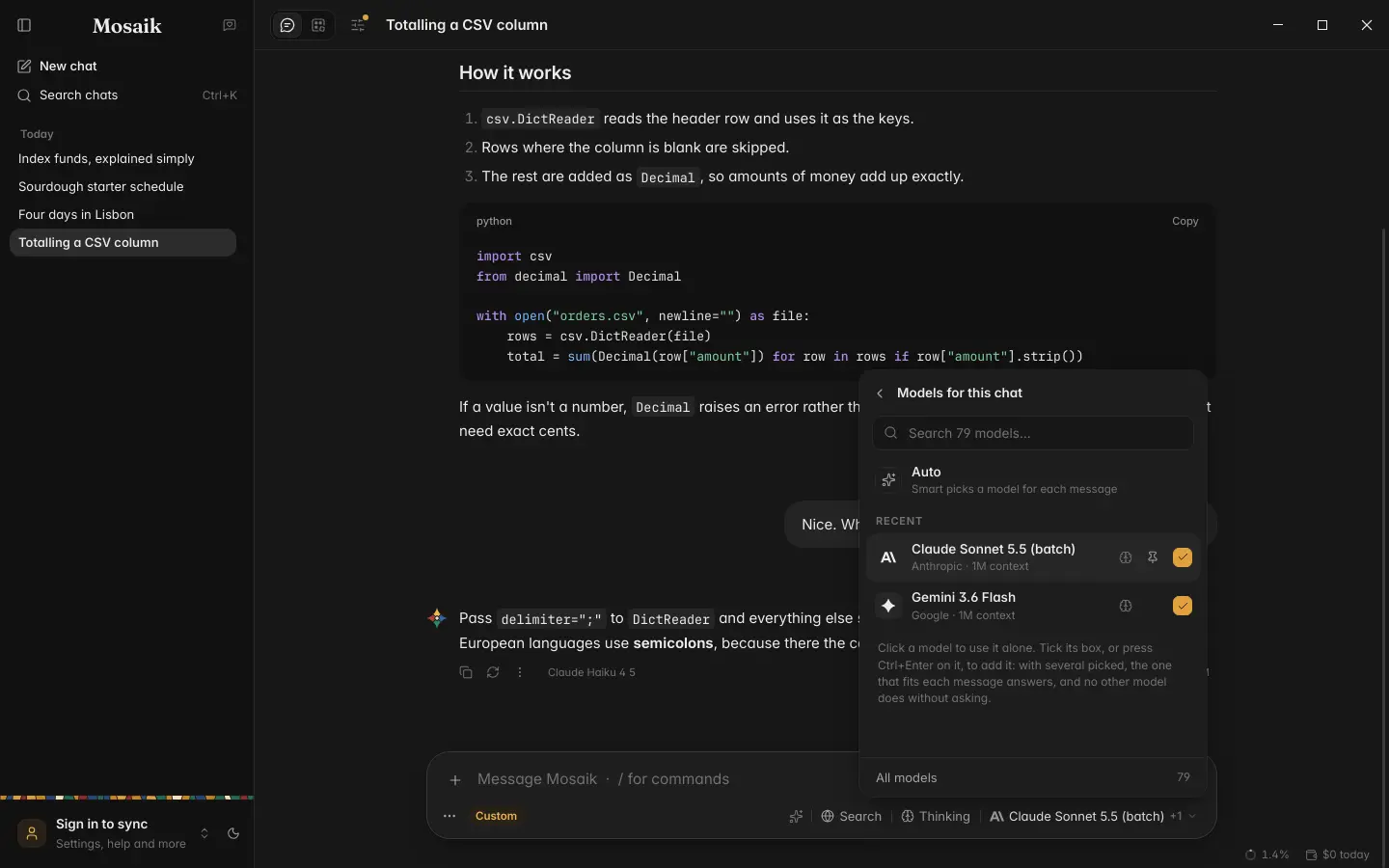
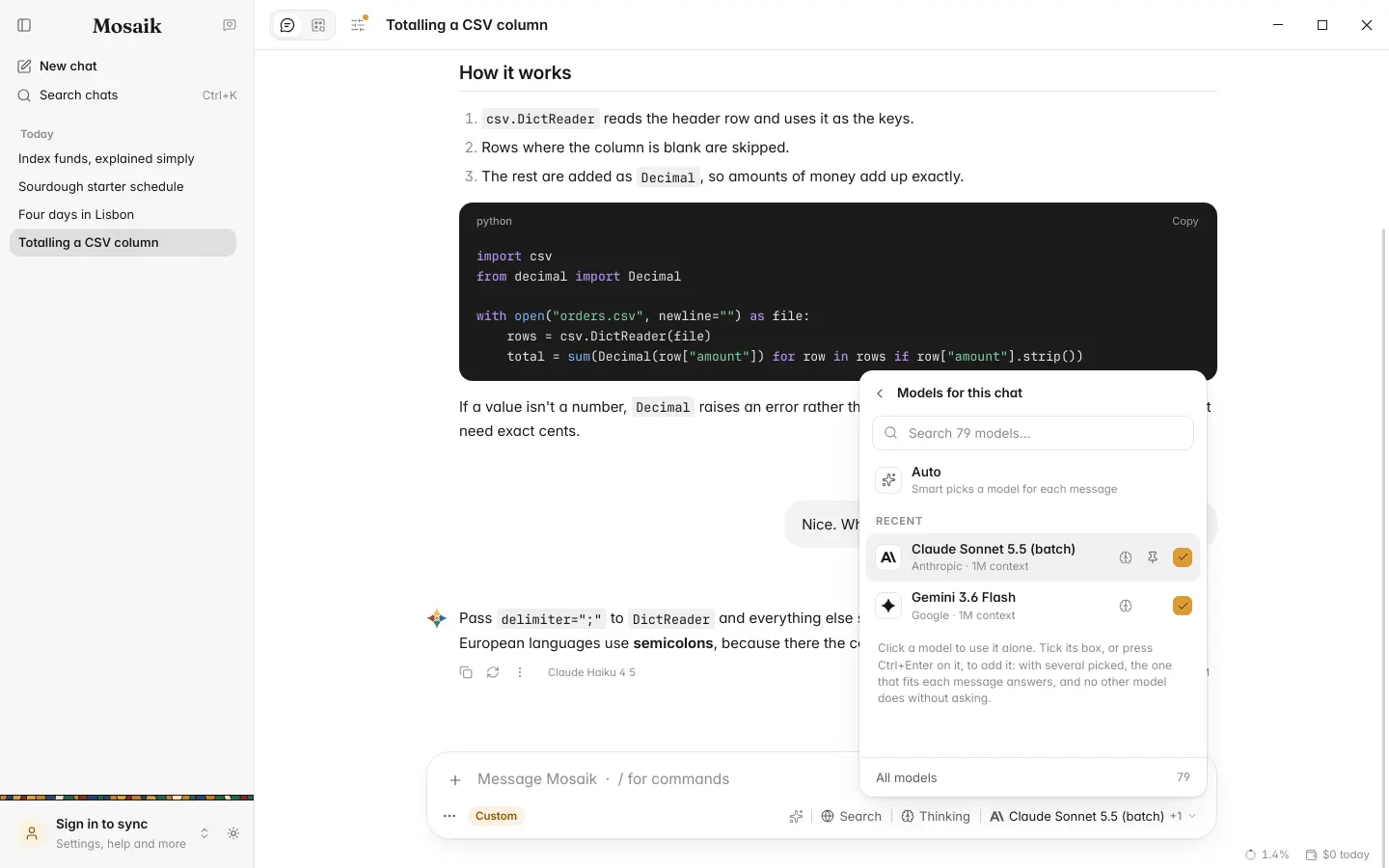
The model button at the right end of the message box opens the model menu for the open
chat. In Smart mode it holds Smart's two controls, your saved setups and the
Manual mode switch. Smart mode has no model to pick, since Smart picks one
for each message. Picking a model from the model browser or with /model puts
the chat in Manual mode.
In Manual mode the menu's Model row opens a search with Auto, your pinned, recent and all models. A click on a model makes it the chat's only model. The box at the end of its row adds it beside the others, up to four. With several picked, one of them answers each message: the first answers an everyday message, the least costly a quick one, and the most capable a hard one. A message that names a model you haven't picked asks first whether to use it for that message.
The models picked are for this chat alone, until you change them. New chats start with Smart, or with the models picked on the New Chat page.
The model browser
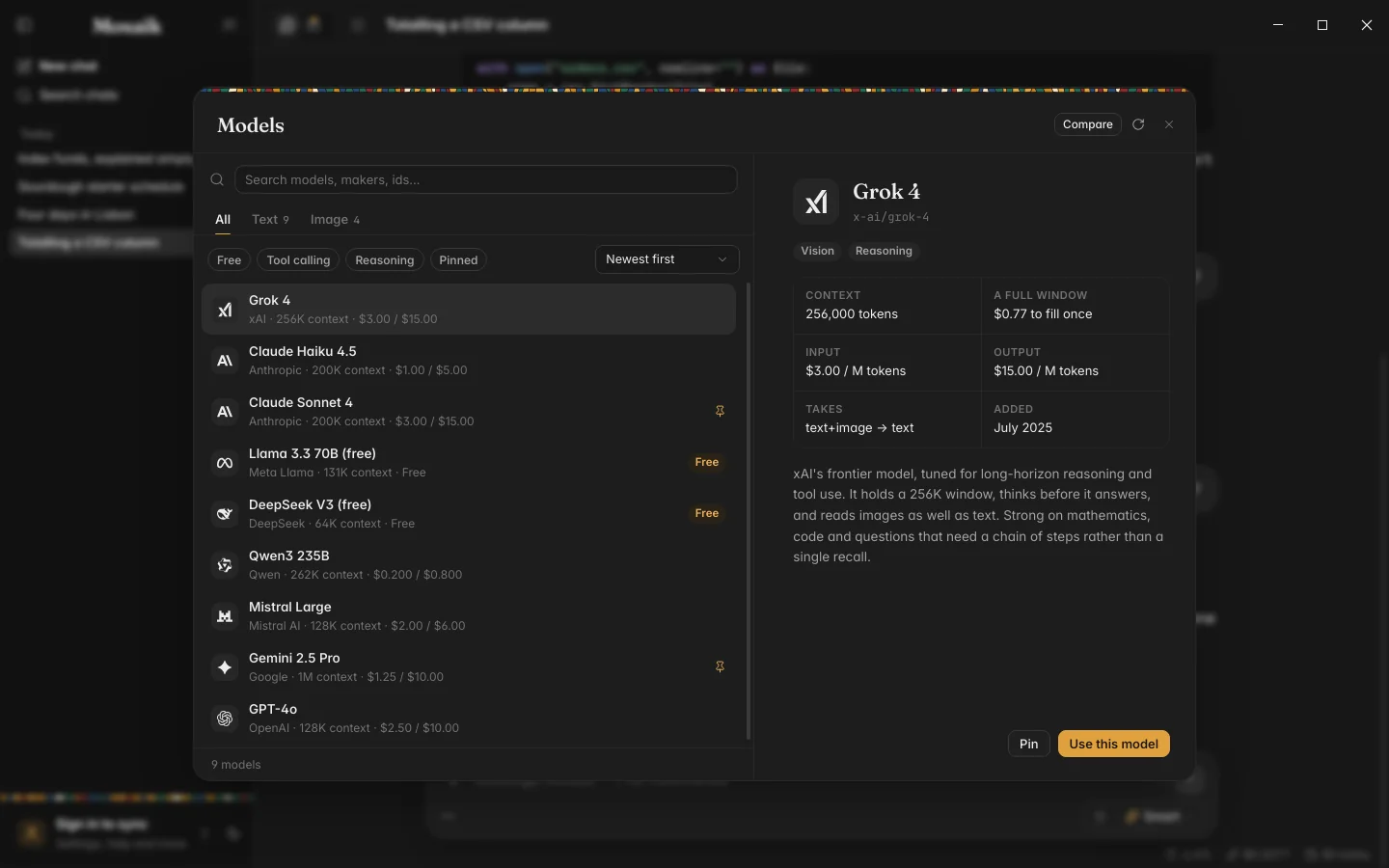
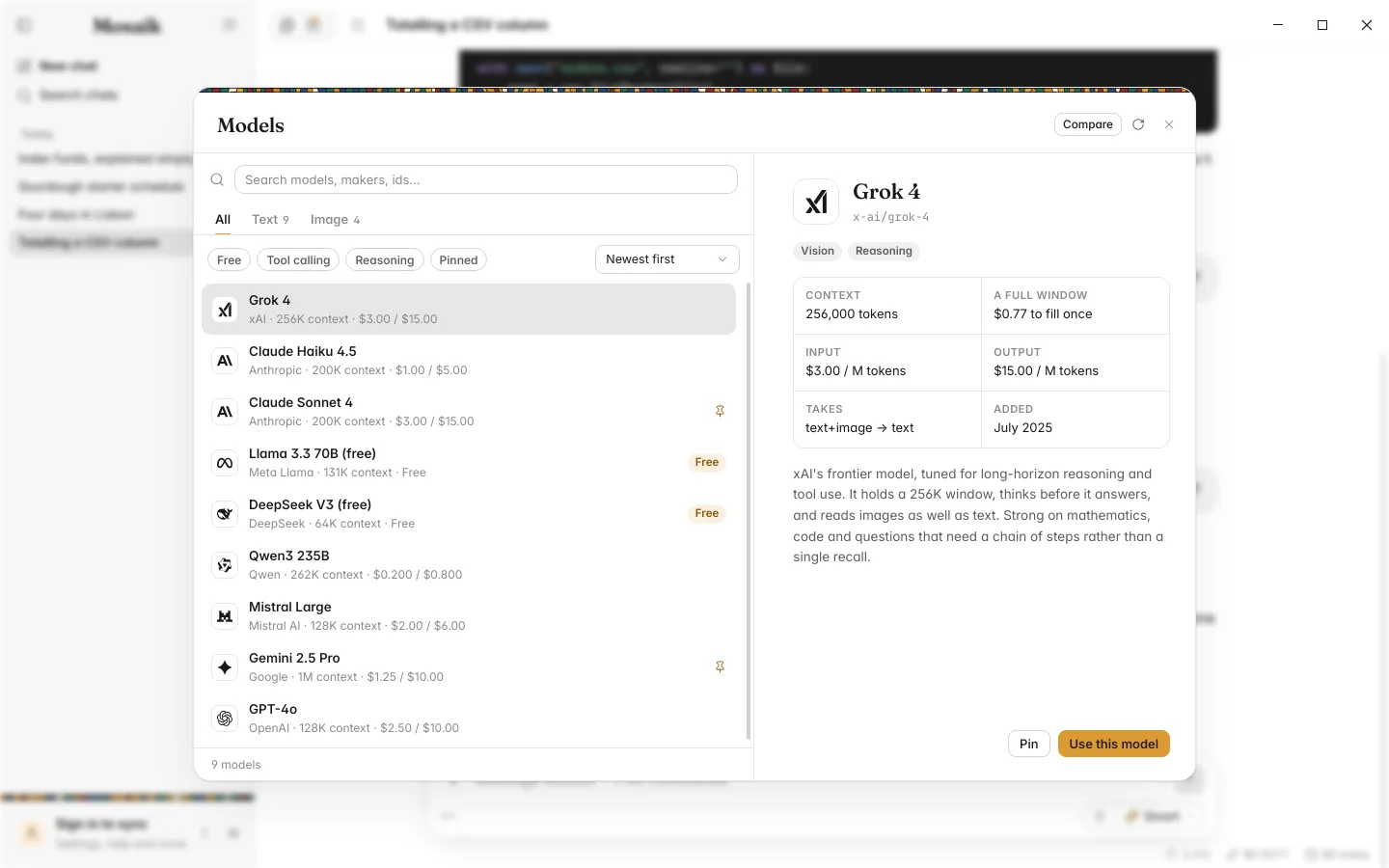
All models, at the foot of the picker, opens OpenRouter's whole list of models. It has a tab for each kind of model (text, image, audio and more), filters for Free, Tool calling, Reasoning and Pinned, and sorts by newest, name, price or context size. Pick a model to see its context window, its prices, what it accepts, when it was added and what it can do: Vision, Audio, Reasoning, or No tools for models that can't use search or the exact tools. Pin the ones you use so they appear in the picker.
Reasoning
Some models can think before they answer. For those, a control next to the model button sets how much:
| Auto | The model decides how hard to think about each question. |
|---|---|
| Off, Low, Medium, High | A fixed effort. More thinking is slower and costs more tokens, and often gives better answers to hard questions. |
The choice is remembered for each model. When a model shares its reasoning, you can read it in the work line above the answer.
Providers
Most models on OpenRouter are served by several companies, at very different speeds. The same model can stream at twenty words a second from one and two hundred from another. Settings › Models › Advanced › Providers chooses how OpenRouter picks:
| Fastest | The default. The quickest provider, usually for a little more money. |
|---|---|
| Balanced | OpenRouter's own choice, which leans towards price. |
| Cheapest | The lowest price. |
The same section can let Mosaik retry with another free model when a free model gives no answer at all. It only switches before any text has arrived, so two models' words are never mixed in one answer.
Testing a model
Recommended in Settings › Models lists the families Mosaik is tuned for, by price. The Test button beside each runs a small task that needs a tool and checks the model called it and used the result. Worth doing before you rely on a new model for search or sums.